Hard-coded file paths are one of the most common obstacles to reproducible Stata projects. A path such as
global main_path "C:/Users/jamel/Dropbox/Revision-MDY-25-07-china-provinces-uncertainty"works on one computer, but it may fail on another computer because the username, drive letter, Dropbox location, or operating system is different.
A better solution is to let Stata identify the project root from its current working directory.
The project structure
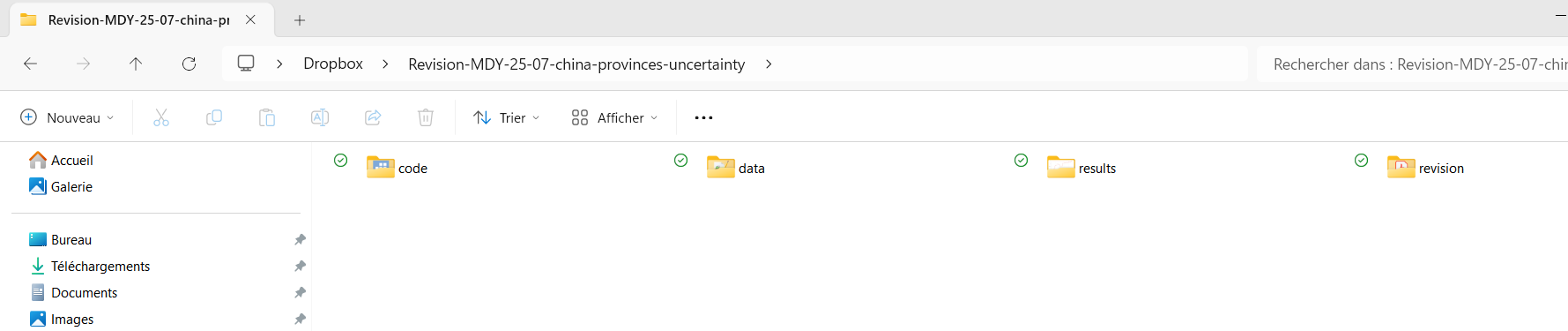
The project shown in the screenshot has the following organization:
Revision-MDY-25-07-china-provinces-uncertainty/
├── code/
├── data/
├── results/
└── revision/
The folder Revision-MDY-25-07-china-provinces-uncertainty is the project root. The portable setup should work when Stata is launched from the root or from any of its four main subdirectories.
Complete portable setup
The following code reflects the actual folder structure:
*-------------------------------------------------------------------------------
* Portable project paths
*
* The do-file may be launched from:
*   - the project root
*   - code
*   - data
*   - results
*   - revision
*-------------------------------------------------------------------------------

* Store Stata's current working directory
local here "`c(pwd)'"

* Use forward slashes on all operating systems
local here : subinstr local here "\" "/", all

* Remove a trailing slash, if one is present
if substr("`here'", -1, 1) == "/" {
    local here = substr("`here'", 1, strlen("`here'") - 1)
}

* Extract the name of the current folder
local last_folder = lower(substr( ///
    "`here'", ///
    strrpos("`here'", "/") + 1, ///
    . ///
))

* If Stata is in a project subfolder, move to the project root
if inlist( ///
    "`last_folder'", ///
    "code", ///
    "data", ///
    "results", ///
    "revision" ///
) {
    quietly cd ..
}

* Store and normalize the project-root path
local root "`c(pwd)'"
local root : subinstr local root "\" "/", all

* Define the main project directories
global main_path "`root'"
global code      "${main_path}/code"
global data      "${main_path}/data"
global results   "${main_path}/results"
global revision  "${main_path}/revision"

* Verify that the required folders exist
foreach folder in code data revision {

    capture cd "${main_path}/`folder'"

    if _rc {
        display as error ///
            "Required folder not found: ${main_path}/`folder'"
        display as error ///
            "Current candidate root: ${main_path}"
        exit 170
    }

    quietly cd "${main_path}"
}

* Create the results folder if it does not yet exist
capture mkdir "${results}"

* Verify that the results folder can be opened
capture cd "${results}"

if _rc {
    display as error ///
        "Results directory could not be opened: ${results}"
    exit 603
}

* Finish the setup in the project root
quietly cd "${main_path}"

display as text "Project root: ${main_path}"
How the code works
1. Read the current working directory
Stata stores its current working directory in c(pwd):
local here "`c(pwd)'"On the computer shown in the screenshot, it might initially contain:
C:\Users\jamel\Dropbox\Revision-MDY-25-07-china-provinces-uncertaintyIf Stata was opened from the code folder, it might instead contain:
C:\Users\jamel\Dropbox\Revision-MDY-25-07-china-provinces-uncertainty\codeThe exact location does not need to be written into the do-file.
2. Standardize the directory separators
Windows typically uses backslashes:
C:\Users\jamel\Dropbox\projectmacOS and Linux use forward slashes:
/Users/jamel/Dropbox/projectThe following command replaces all backslashes with forward slashes:
local here : subinstr local here "\" "/", allThe Windows path therefore becomes:
C:/Users/jamel/Dropbox/projectStata accepts forward slashes on Windows, macOS, and Linux. Using a common separator makes the remaining code easier to manage.
3. Identify the current folder
This block extracts the final component of the path:
local last_folder = lower(substr( ///
    "`here'", ///
    strrpos("`here'", "/") + 1, ///
    . ///
))
For example, suppose the working directory is:
C:/Users/jamel/Dropbox/project/codeThe function strrpos() finds the position of the final slash. The function substr() then extracts everything after that slash.
The result is:
codeThe lower() function converts the folder name to lowercase. Consequently, code, Code, and CODE are treated identically.
4. Move to the project root
The following condition checks whether Stata is currently in one of the four project subdirectories:
if inlist( ///
    "`last_folder'", ///
    "code", ///
    "data", ///
    "results", ///
    "revision" ///
) {
    quietly cd ..
}
When Stata is in code, data, results, or revision, the command
cd ..moves one level upward.
For example:
.../Revision-MDY-25-07-china-provinces-uncertainty/codebecomes:
.../Revision-MDY-25-07-china-provinces-uncertaintyWhen Stata is already in the project root, no directory change is needed.
5. Define reusable project paths
Once Stata has identified the root, the code creates four global macros:
global code      "${main_path}/code"
global data      "${main_path}/data"
global results   "${main_path}/results"
global revision  "${main_path}/revision"
On one computer, they might expand to:
C:/Users/jamel/Dropbox/Revision-MDY-25-07-china-provinces-uncertainty/codeOn a coauthor’s computer, they might expand to:
D:/Dropbox/Revision-MDY-25-07-china-provinces-uncertainty/codeOn macOS, the same macro might become:
/Users/coauthor/Dropbox/Revision-MDY-25-07-china-provinces-uncertainty/codeThe Stata code remains unchanged in all three cases.
Using the project paths
Data can be loaded with:
use "${data}/china_provinces.dta", clearAnother do-file can be executed with:
do "${code}/estimation.do"A graph can be exported with:
graph export ///
    "${results}/threshold_LR.png", ///
    as(png) replace width(2400)
A document in the revision folder can be referenced with:
global response_letter ///
    "${revision}/response_to_reviewers.docx"
Explicit paths are preferable to repeatedly changing the working directory. Each command makes clear whether the file is an input, a program, a result, or a revision document.
Checking that the project is correctly identified
The setup verifies that the expected folders exist:
foreach folder in code data revision {
    capture cd "${main_path}/`folder'"

    if _rc {
        display as error ///
            "Required folder not found: ${main_path}/`folder'"
        exit 170
    }

    quietly cd "${main_path}"
}
The capture prefix prevents Stata from stopping immediately when a directory is missing. Instead, the return code is stored in _rc.
When _rc is nonzero, Stata prints an informative message such as:
Required folder not found:
C:/Users/jamel/Dropbox/wrong-directory/data

Current candidate root:
C:/Users/jamel/Dropbox/wrong-directory
This is much easier to diagnose than a later generic “file not found” error.
Creating the results directory automatically
Input folders such as data should normally already exist. The results folder, however, can safely be created by the do-file:
capture mkdir "${results}"If the directory already exists, capture suppresses the resulting warning. If it does not exist, Stata creates it.
The code then checks whether the directory can actually be opened:
capture cd "${results}"

if _rc {
    display as error ///
        "Results directory could not be opened: ${results}"
    exit 603
}
This helps identify problems such as a missing folder, an inaccessible Dropbox directory, or insufficient write permissions before tables and graphs are exported.
An important limitation
This approach uses c(pwd), which is Stata’s current working directory. It does not automatically detect the physical location of the do-file.
The method therefore works when Stata’s current directory is one of the following:
project root
project root/code
project root/data
project root/results
project root/revision
It will not identify the project correctly when the current working directory is unrelated to the project. For example, running a do-file stored in code while Stata remains in Documents will make c(pwd) point to Documents, not to the do-file.
A practical routine is therefore to open the project root in Stata before running the main do-file, or to launch the analysis while Stata is already positioned in one of the recognized project folders.
Conclusion
Portable project paths eliminate usernames, drive letters, and computer-specific Dropbox locations from Stata code. The do-file derives the project root from c(pwd), standardizes path separators, identifies whether it was launched from a subdirectory, and defines reusable paths for code, data, results, and revision.
The same project can consequently be moved between computers without rewriting its directory definitions. This improves collaboration, simplifies replication, and prevents many avoidable file-path errors.